Instruments by Science Group
 Macromolecular
 Soft Condensed
  Imaging and
 Biological
 Magnetic
 Structures and
 Crystallography
  Spectroscopy
 I19 Contact
Beamline Phone Number:
+44 (0) 1235 778418
Principal Beamline Scientist:
Dave Allan
Tel: +44 (0) 1235 778644
E-mail: [email protected]
Science Group Leader
Philip Chater
Email: [email protected]
Tel: +44 (0)1235 778677
I19 Small Molecule Single Crystal Diffraction
Status: Operational
Wavelength: 0.5 - 2.5 Å
Energy: 5 - 25 keV
Energy: 5 - 25 keV
There are a number of options available for viewing diffraction images, sadly none of them are perfect.
Detector Image Plot
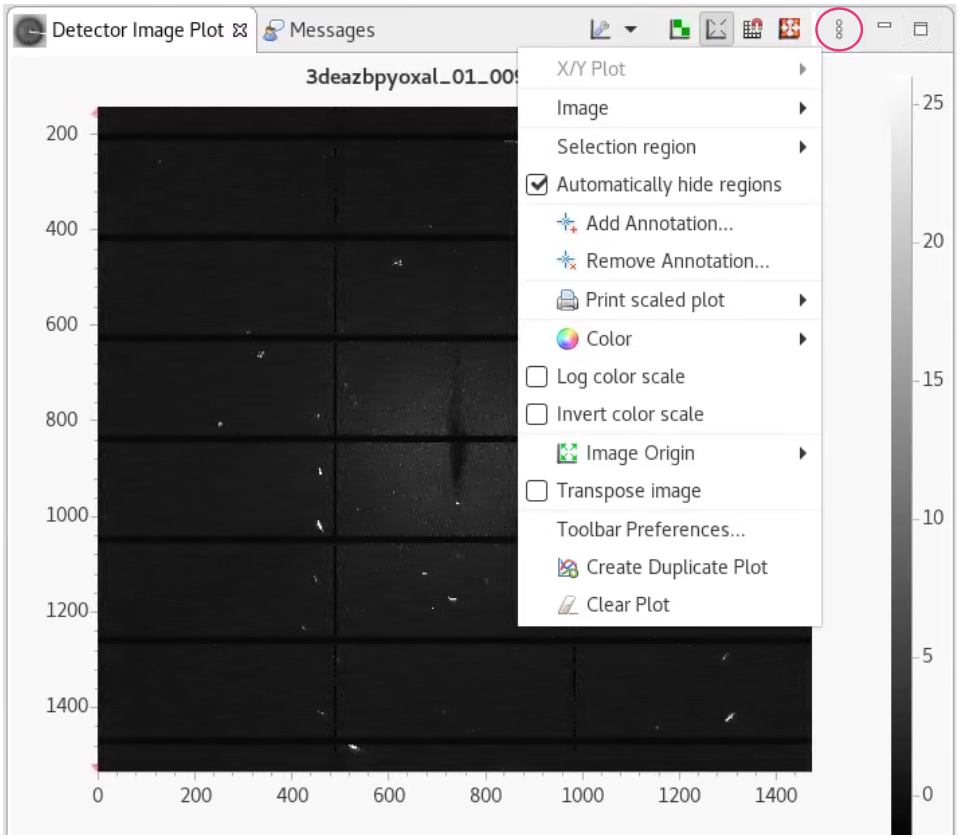
During data collection, some images will be displayed in the GDA in the Detector Image Plot window. It is possible to modify the image settings to make this more useful.
Click on the vertical array of dots to bring up the list of image options – e.g., invert the image colour scale.
You can also change the colour scheme - click on the arrow next to colour to have a look (and a play).
Below is orange-red and above is grey scale from sequential 1, for example.
Click on the scale on the right-hand side and scroll to change contrast. The button will auto-histogram. Right click on the scale to lock the contrast while scrolling through images.
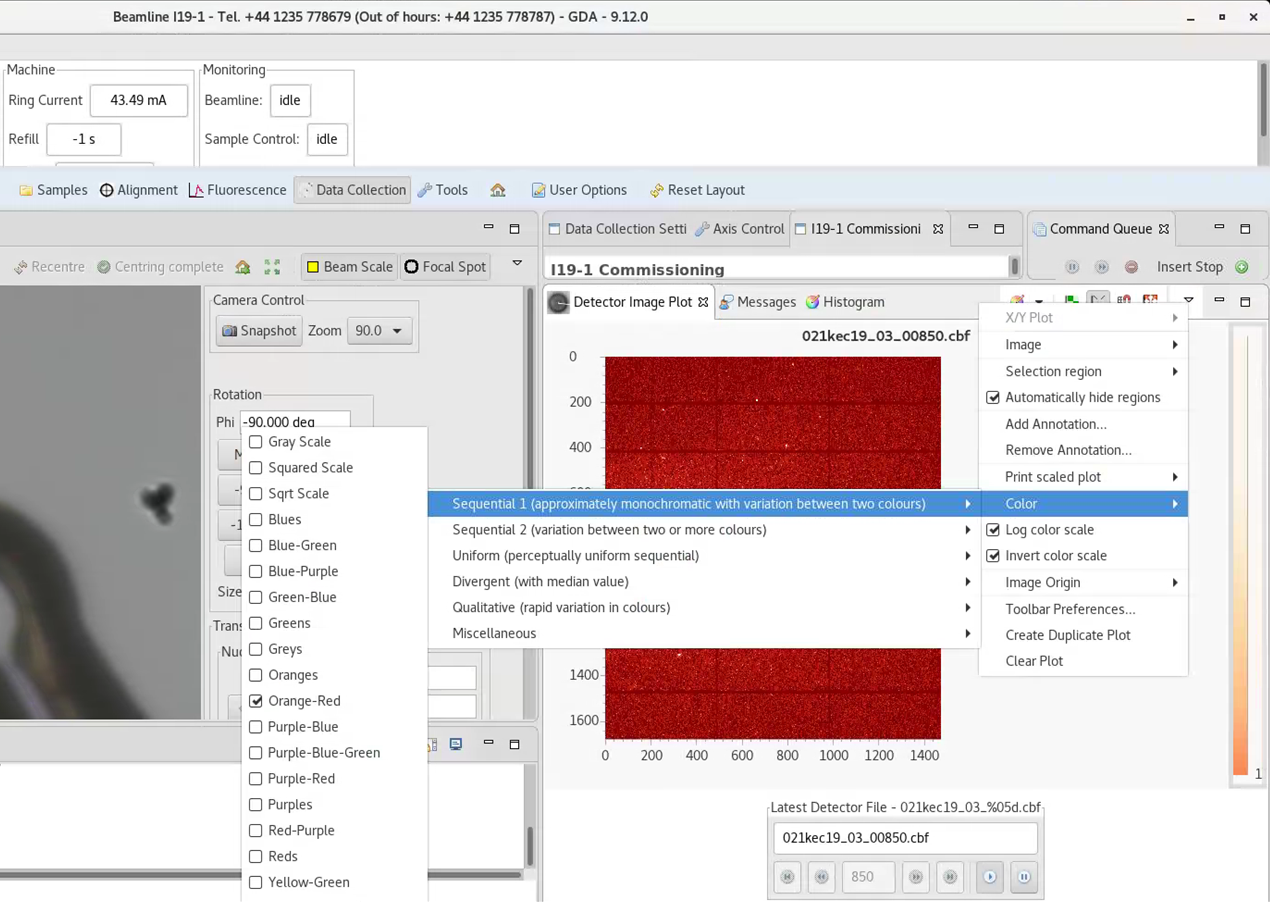
You might need to look in preferences to find the box to make your changes stick, but once set they should be remembered and then be sensible in the future.
Dectris software
To view images in Albula (Dectris software), open a terminal window and type albula, then press enter. [You may need to type module load i19 or module load albula first if the terminal has not been set up for I19.]
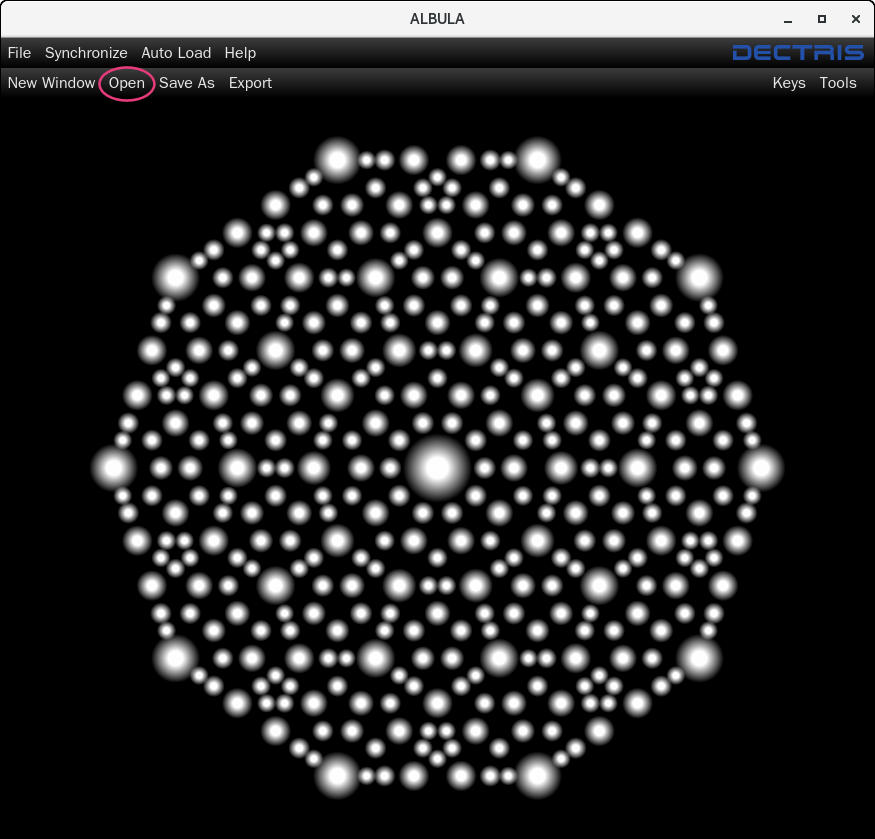
Click Open in the top left-hand corner and navigate to the desired dataset - bear in mind that a folder containing a lot of images will take a while to load in.
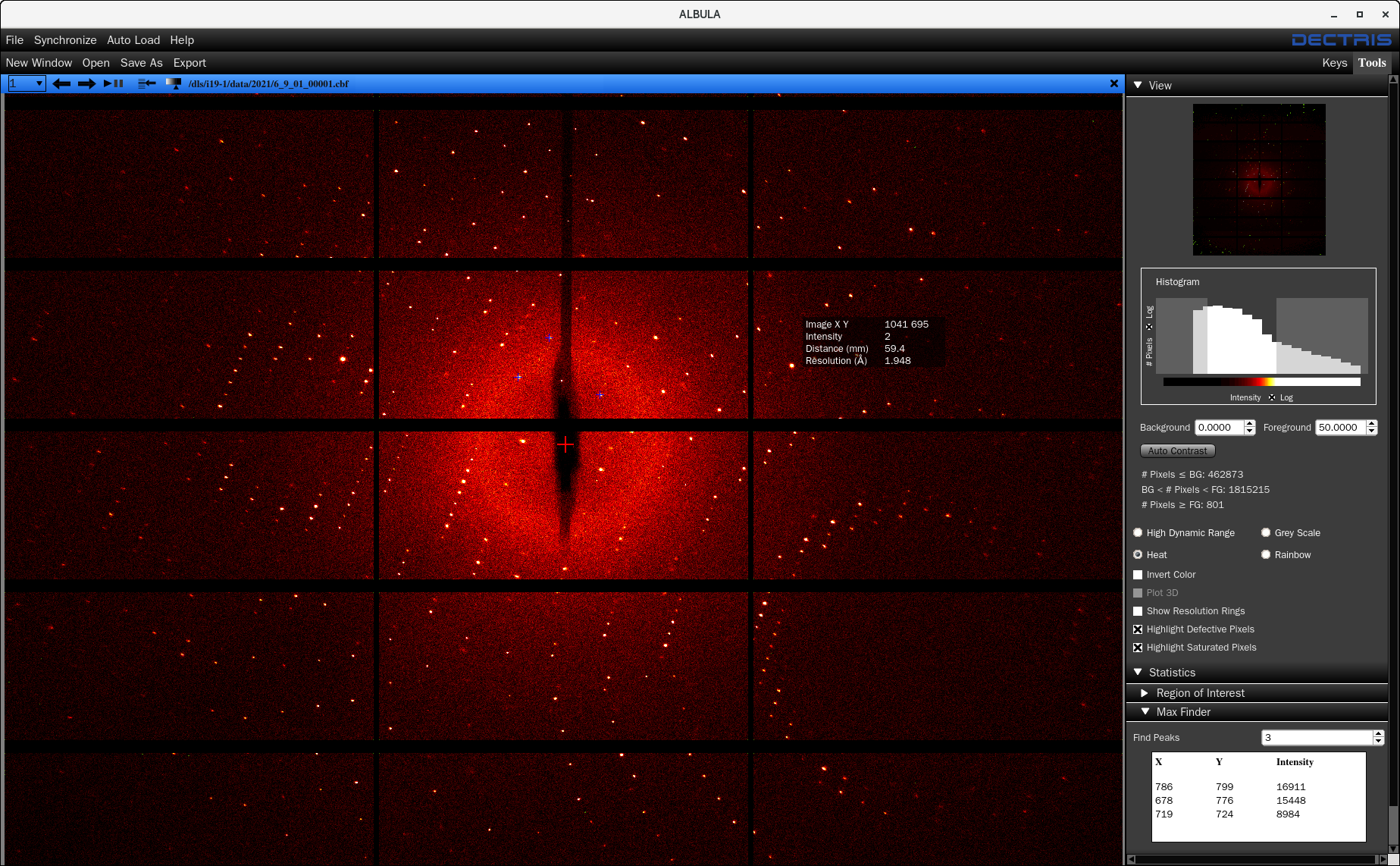
The Tool menu shown on the right had side is opened by clicking on  in the top right-hand corner.
There are a number of image viewing options:
High Dynamic Range highlights the strongest reflections with red dots – important note: this is not related to the detector threshold and does not mean these reflections are overloaded.
Heat gives yellow and red images, similar to the standard display in Apex and is usually the clearest option to see the reflections.
The contrast of the image can be changed by:
- Dragging the bars on the histogram plot (within the Tool menu)
- Changing the Background and/or Foreground values
- Clicking on the icon in the blue menu bar
 and dragging the line across. The
  button often gives a good starting place.
The image can be zoomed by simply rolling the mouse wheel
Opening the Statistics section of the Tool bar gives you the option to highlight the strongest reflections with blue crosses (choose how many by typing the number in the box, e.g., 3 in the screenshot above).
Resolution rings can be checked but it is important to note that they are only accurate for the 2 theta=0° scans. For 2 theta=30° scans, the edge of the second column of sensors is about 0.8Å resolution when at a wavelength of 0.6889 Å.
To move through the images, click on the arrow buttons  , or the play/pause button
  to auto-play. The number of images viewed can also be changed if you don’t want to see every one – click on the down arrow and select the step-size required
  .
.
Image Viewer
To open all images in a folder from the location of the images type:
dials.image_viewer *.cbf
Alternatively, from anywhere type:
dials.image_viewer /dls/i19-1/data/YEAR/VISIT/path/to/images *.cbf
To just open a single run, use *_04*.cbf for example, to just look at run 4
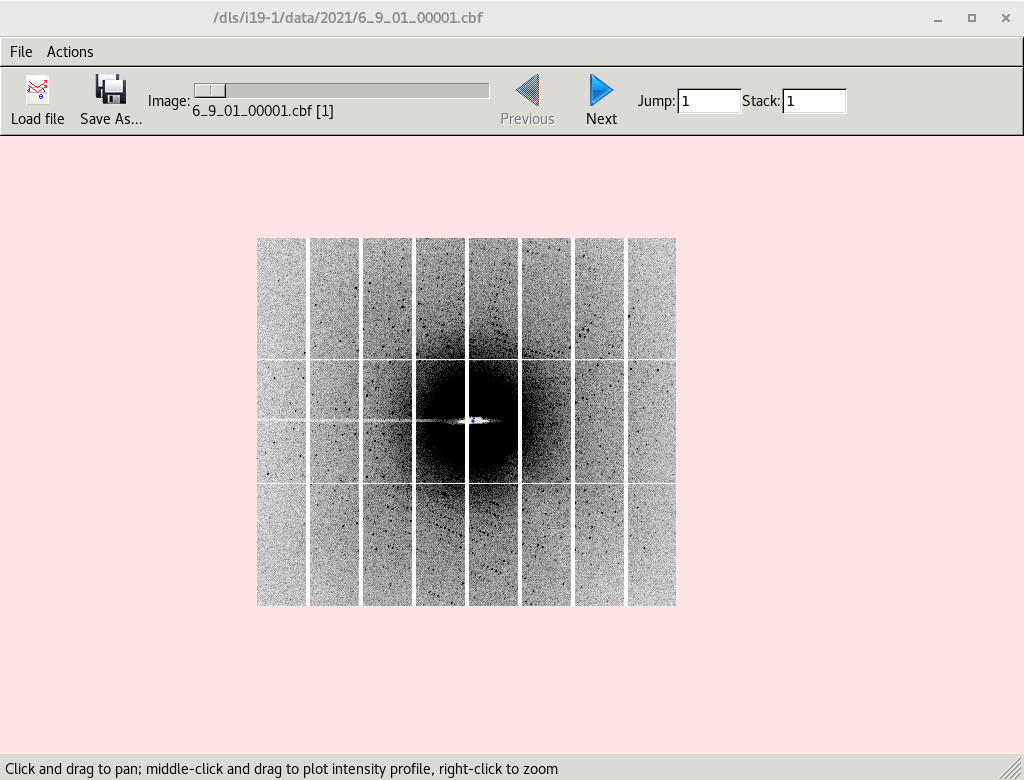
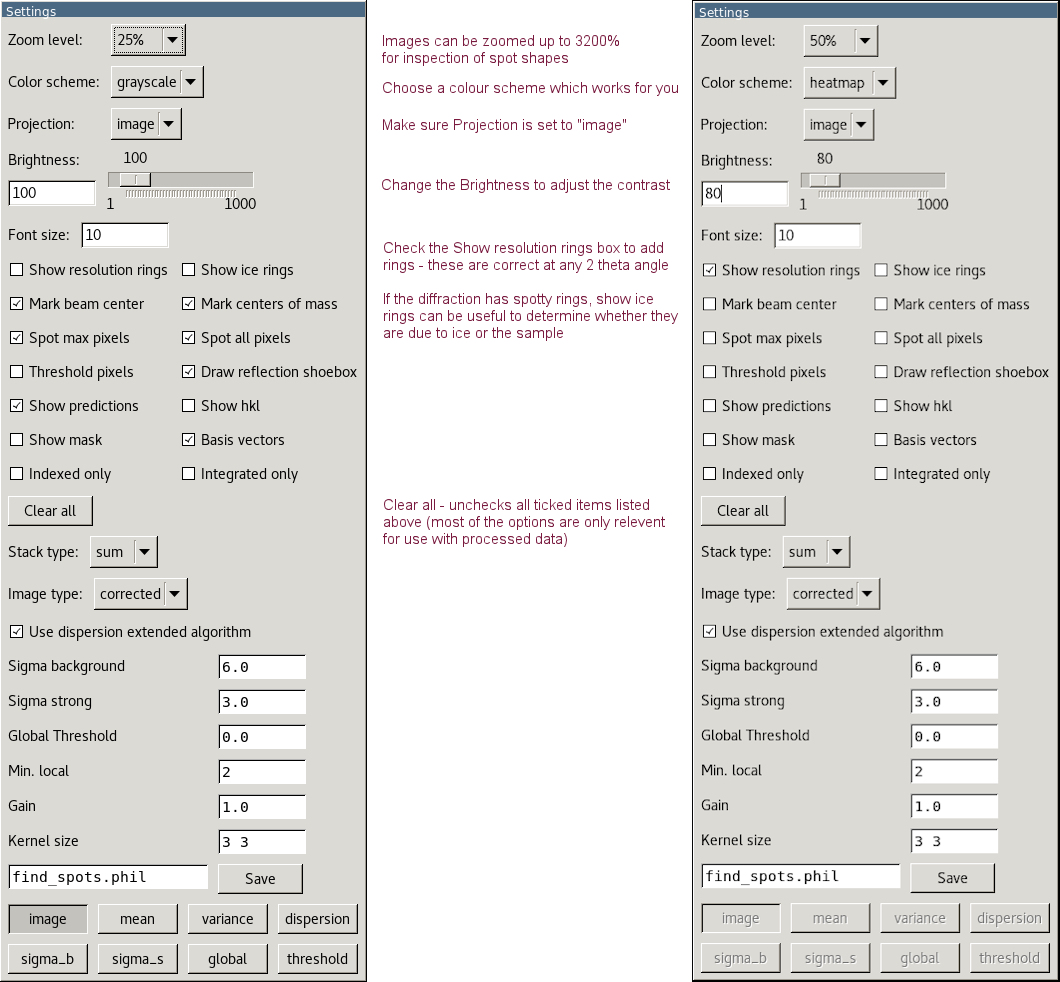
The Image and Settings windows should open. Adjust the settings to make the reflections clearer.
Use Next/Previous to move on/back a single image. Use the scroll bar to move very quickly to another image or type the image number in the Jump box to view a specific image. Jump is based on the total number of images in the dataset with no regard for the run number so for the default run list, the final image of the dataset is 3450.

Stack will sum adjacent images so, for example, 5 x 0.2° images will stack to show the equivalent of a 1° image.
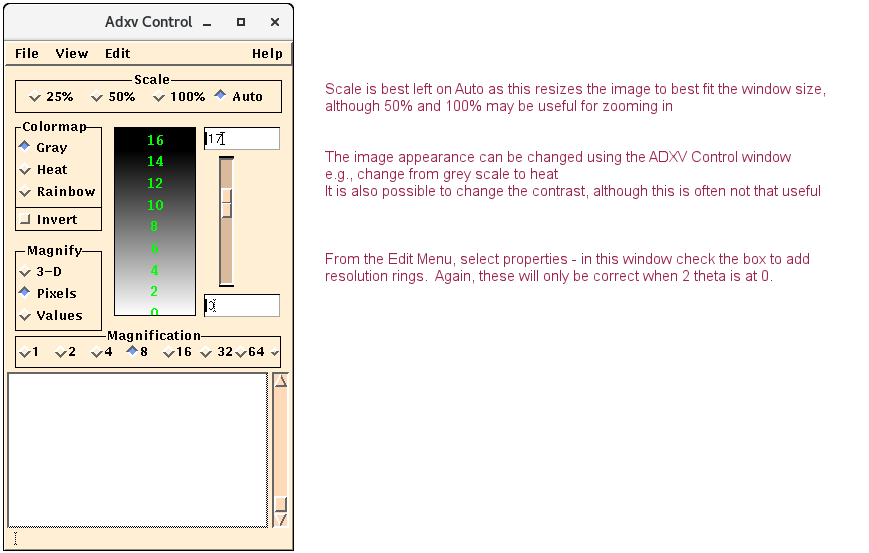
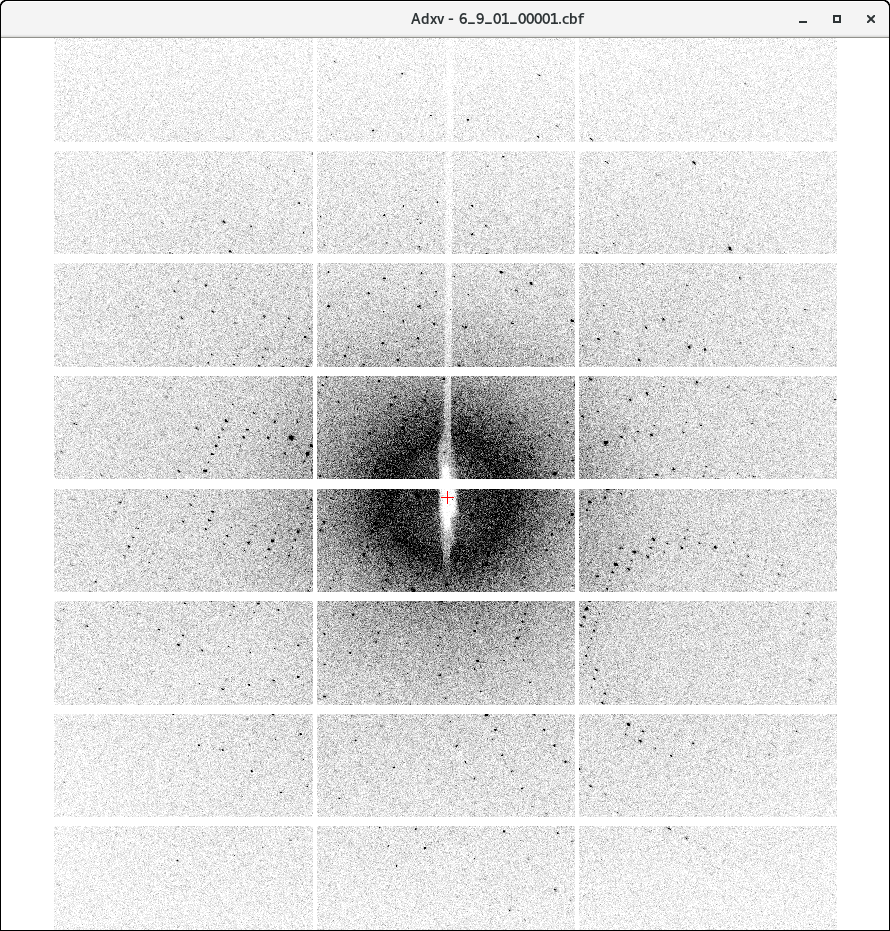
ADXV
Another option which may be particularly useful if you are accessing the beamline remotely (Albula can run very slowly and the images end up very pixelated), is ADXV.
In a terminal, type module load adxv, press enter
Then type adxv and press enter
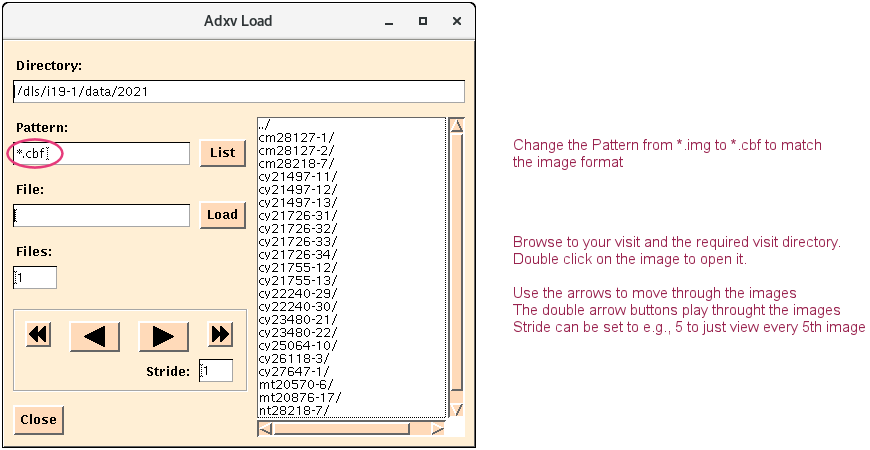
Three windows should open

Diamond Light Source is the UK's national synchrotron science facility, located at the Harwell Science and Innovation Campus in Oxfordshire.
Diamond Light Source Ltd
Diamond House
Harwell Science & Innovation Campus
Didcot
Oxfordshire
OX11 0DE
Copyright © Diamond Light Source. Diamond Light Source® and the Diamond logo are registered trademarks of Diamond Light Source Ltd
Registered in England and Wales at Diamond House, Harwell Science and Innovation Campus, Didcot, Oxfordshire, OX11 0DE, United Kingdom. Company number: 4375679. VAT number: 287 461 957. Economic Operators Registration and Identification (EORI) number: GB287461957003.