Uploading Samples using CSV file
This upload mechanism is subject to change, contact [email protected] / [email protected] if you require assistance, or believe this page is outdated.
When dealing with a large number of samples it is possible to use a correctly specified csv file which can then be uploaded using a script. It may be useful to help integrate with your laboratory information management system.
This method for sample upload is suitable for all access modes: Responsive Remote, On site visits, Industrial Mail-in and Unattended Data Collection (UDC).
Steps to complete prior to upload
UAS
As with samples that are registered via ISPyB, you will need to first Ensure sample registered on UAS. Check that the experiment risk assessment (ERA) is validated by Diamond Safety, Health and Environment (SHE) group before preparing the shipment.
The protein acronym to be used for sample upload to ISPyB must exactly match the protein acronym used in the ERA. To define a new protein based on a previously validated sample (e.g. a seleno-methionine derivative or point mutant) the original approved sample can be cloned as described here.
When a sample ERA has been validated, the approved protein acronyms will be transferred to ISPyB. It will only be possible to upload the CSV file after this step is finalised. The transfer runs every 4 hours, so there may be some waiting time before you can upload a newly validated sample.
Creating Shipment
Next you should create a shipment. The shipment name specified in the CSV must be an exact match with the shipment name created via the ISPyB/SynchWeb interface.
Preparing the csv file
Next prepare the csv file. The format of the file is a comma delimited .csv file with up to 29 columns.
Downloadable template csv, with all columns and 1 sample.
Each line (row) in the file represents one sample and each sample must be listed. Data fields (columns) cannot contain commas. The minimal number of columns to be included is 15, so all lines must have at least this many columns, and if any column values are specified for any row, all rows must have at least that many columns specified.
The fields used in the CSV are as below in this order:
| Field | Required? | UDC required? | Description | Example |
| proposalCode | First Line | First Line | Proposal type. i.e. mx, in, sw | mx |
| proposalNumber | First Line | First Line | Proposal number | 23694 |
| visitNumber | Visit number | 72 | ||
| shippingName | First Line | First Line | Name of shipment. Normally shipment should be created in synchweb first. | minimal_csv-2 |
| dewarCode | All Lines | All Lines | Dewar code | DLS-MX-0000 |
| containerCode | All Lines | All Lines | Puck barcode. Needs to match exactly, case sensitive | CPS-0001 |
| preObsResolution | Not used | |||
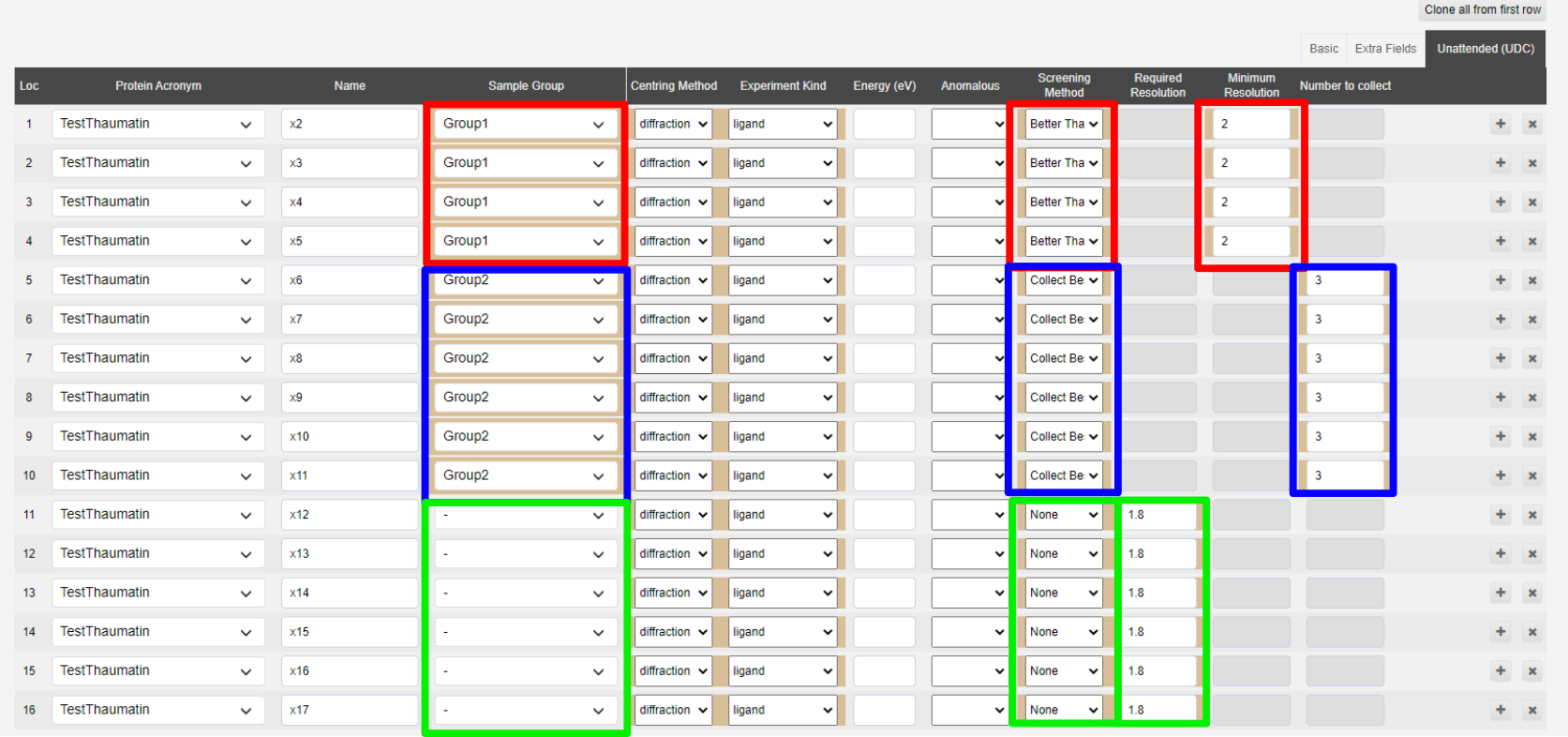
| minimalResolution | Screening: Better Than | Minimal resolution at which to collect datasets when using the Better Than screening strategy | 2.5 | |
| oscillationRange | Not used | |||
| proteinAcronym | All Lines | All Lines | Protein acronym, must match an approved sample in ISPyB (and thereby UAS). | TestLysozyme |
| proteinName | All Lines | All Lines | Protein name. | TestLysozyme |
| spaceGroup | Space group. | P32 | ||
| sampleBarcode | Pin barcode. Can be set to any value if the pin is not barcoded. | AB3214 | ||
| sampleName | All Lines | All Lines | Sample name, should be unique. | x0001 |
| samplePosition | All Lines | All Lines | Position in puck | 1 |
| sampleComments | Comments on sample | |||
| cell_a | Cell dimension a. | 37 | ||
| cell_b | Cell dimension b. | 37 | ||
| cell_c | Cell dimension c. | 73 | ||
| cell_alpha | Cell angle alpha. | 90 | ||
| cell_beta | Cell angle beta. | 90 | ||
| cell gamma | Cell angle gamma. | 90 | ||
| subLocation | Not used | |||
| loopType | Not used | |||
| requiredResolution | All Lines | UDC resolution you expect crystals to diffract to. | 1.8 | |
| centringMethod | All Lines | UDC centring method (diffraction, optical). Diffraction is strongly recommended | diffraction | |
| experimentKind | All Lines | UDC recipe to use (native, phasing, ligand). See UDC webpages for details | native | |
| radiationSensitivity | Not used | |||
| energy | If needed | UDC energy in electron volts. Only add if energy needs to be specified. See UDC webpages for details | 12700 | |
| userPath | If needed |
Adds user structure to file path. i.e /dls/i03/data/2021/<visit> /auto/userpath1/userpath2... |
||
| screenAndCollectRecipe | Screening | Method to be Used for screening strategy: "all" equivalent to the Better Than strategy, "best" equivalent to Collect Best N strategy, leave blank for no screening strategy | all | |
| screenAndCollectNValue | Screening | Number of samples to collect when using the Collect best N screening strategy | 3 | |
| sampleGroup | Screening | Sample group that is used to define which crystals are related to one another for the screening strategy | Group_3 | |
| anomalousScatterer | if Phasing | Must eb a valid element. Will trigger the automatic Phasing pipelines. | Br |
Uploading is only possible from within Diamond
Access to Diamond file systems can be via No Machine Client, or ssh. File transfer can be done via drag and drop in No Machine, WinSCP, scp, rsync or via a web service open on NX and a local client.
To upload the shipment to a proposal, move the .csv file so somewhere on the Diamond filesystem, eg:
- Home directory
- In the tmp folder of the target visit.
- In the tmp folder of a different visit in the same proposal. This can be useful e.g. if the target visit directory doesn't exist yet.
and visit the CSV uploader page, from a browser inside a No Machine session to Diamond:
You will be asked to login, and then redirected to a page like this:
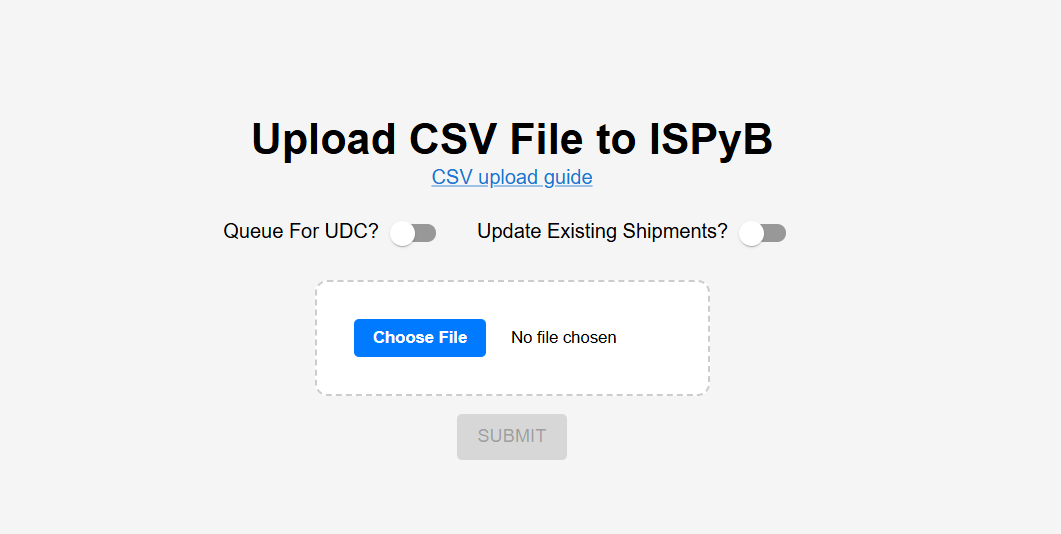
If successful, the page will let you know, and provide a link to the shipment in ISPyB. Please ensure that the upload was successful by checking the shipment in ISPyB.
You do not need to create a shipment manually before uploading, but if you have, enable the "Update Existing Shipments" option. If you create multiple shipments and need to consolidate them, you can move pucks between shipments using the button next to the puck name in ISPyB.
If you have any problems uploading, please email your local contact, or the industry or MX user support teams, saying what error you received, and please include the CSV file so we can reproduce the error.
Minimal Working CSV
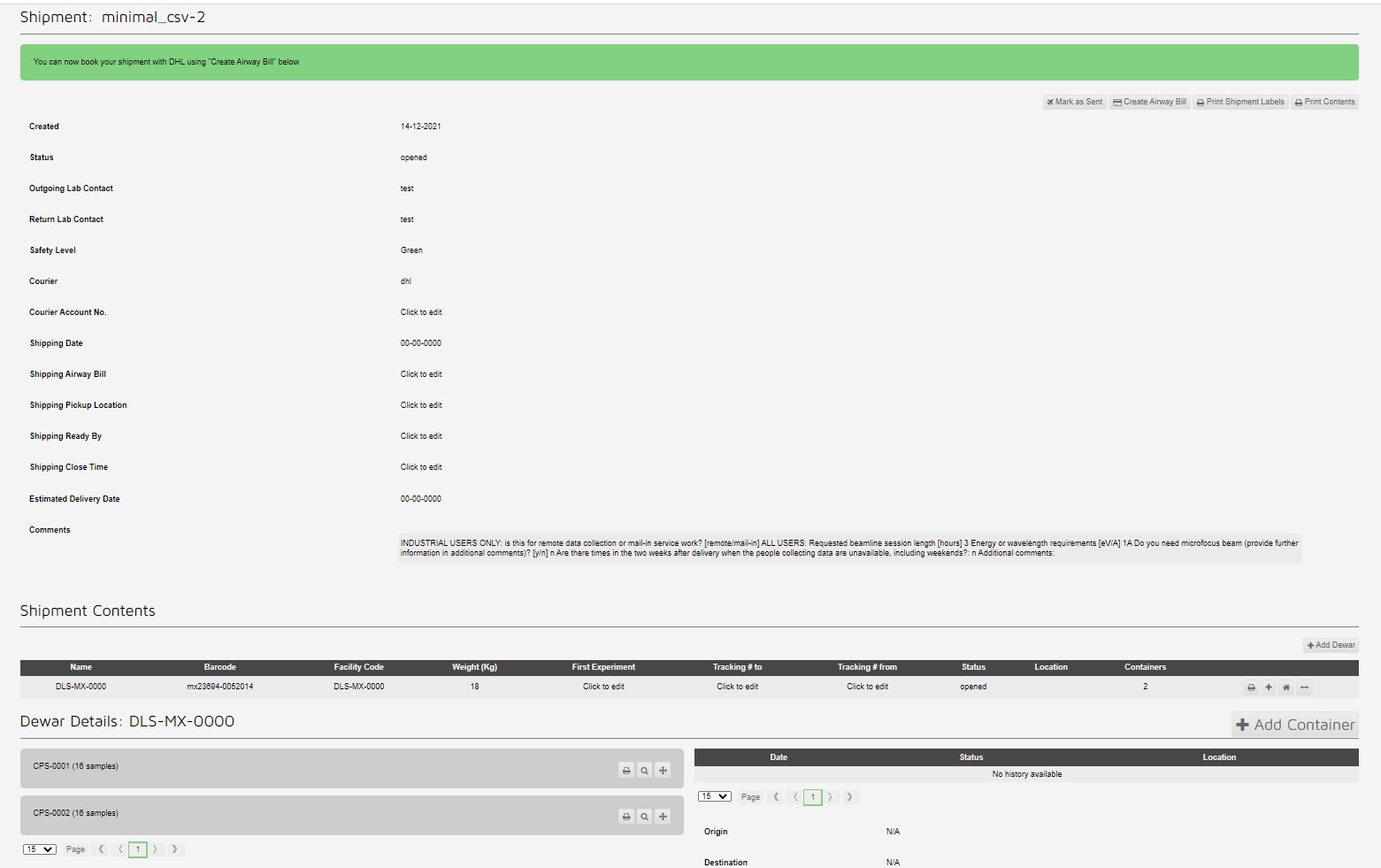
Here is an example of a minimal working example CSV file.

Upload the shipment using the web page as instructed above.
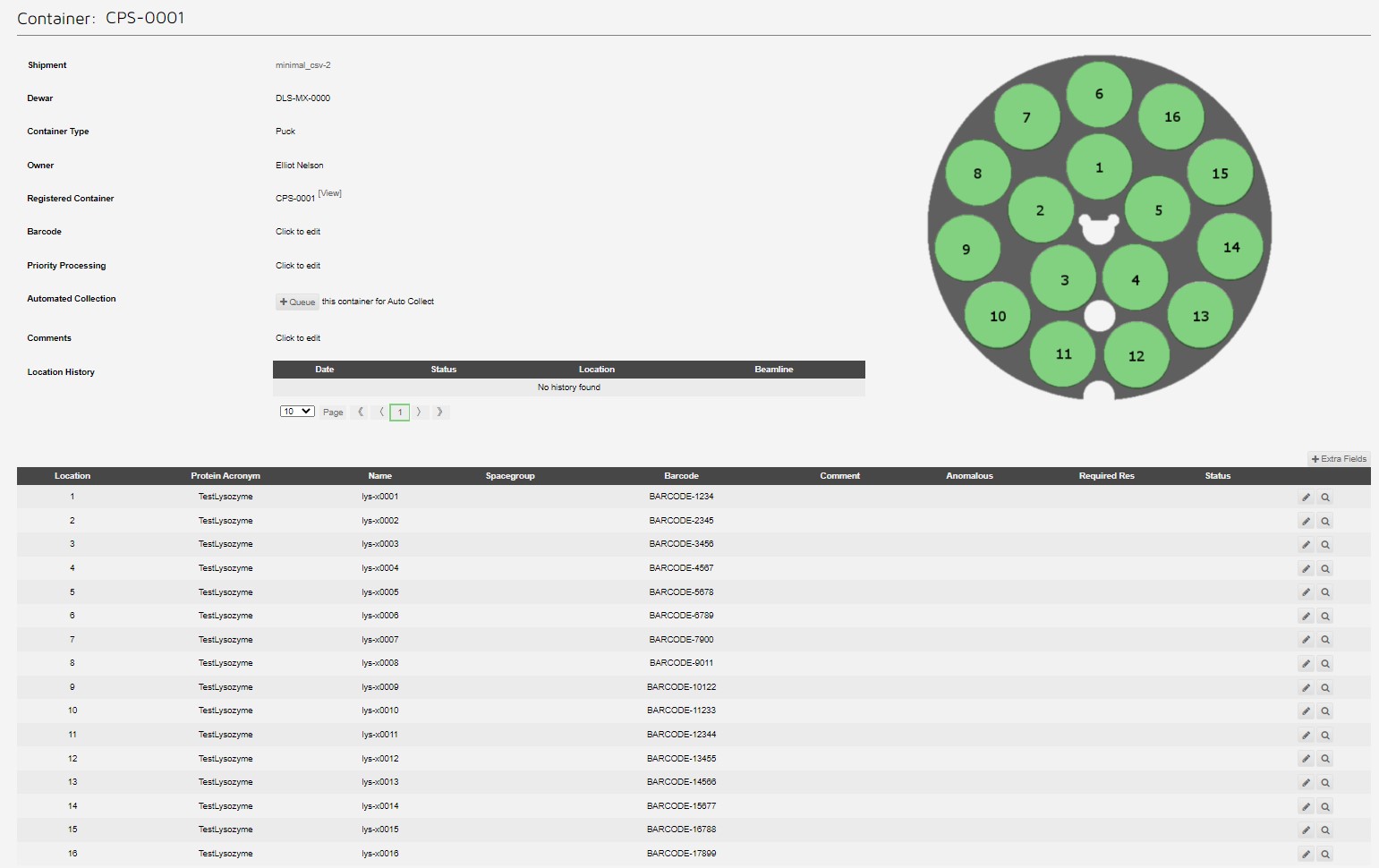
This creates a shipment with two pucks with 16 samples each:
Which can be seen in the container view:
Unattended Data Collection example
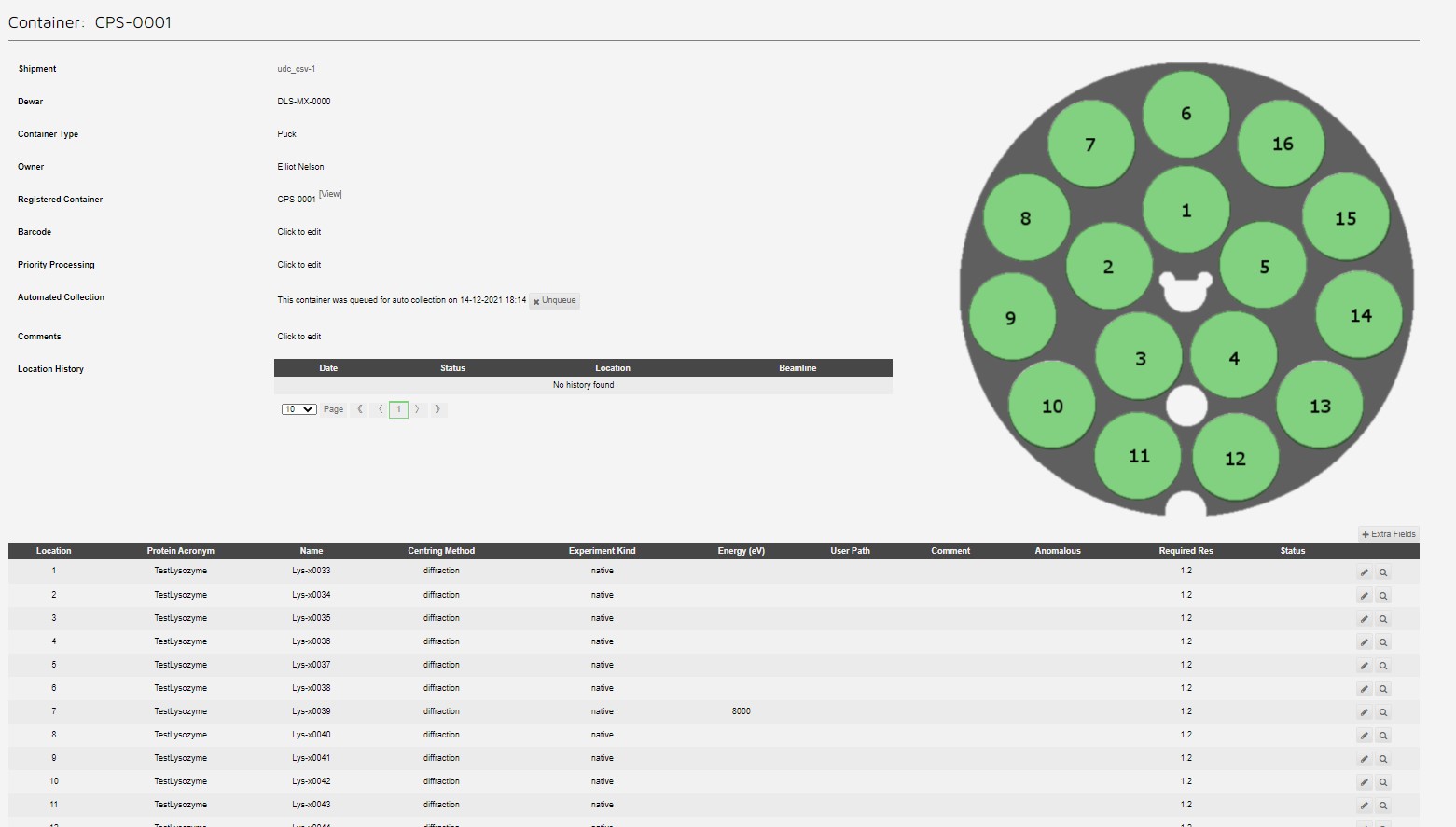
Samples for unattended data collection (UDC) can be uploaded in a very similar manner, by moving the "Queue For UDC" slider to the right. Some extra fields are required, see udc csv.
Giving a queued puck:
Screening strategy example
Template csv showing how to submit CSV with details of screening strategies, samples are set to match those defined in the below image:
Error messages
If not successful, the uploader will usually tell you what the problem is, although it numbers the rows beginning from zero, so the message can be slightly misleading.
If it just returns the message "An error has occurred. Please try again later". Here are some things to check with your CSV file:
- Check the dewar code is correct and is registered for your proposal
- Check the container codes are correct and are registered for your proposal
Please contact [email protected] / [email protected] to register the dewar or puck if needed
- Check you are a member of the proposal you are uploading samples to. Make sure you are added as investigator in UAS.
- Check there are no duplicated samples.
- Check all the proteins already exist in ISPyB and are approved as Green
- Check all sample locations are just numbers from 1-16
- Check samples of the same protein don't also have the same sample name, across the whole proposal
- Check any space groups are valid, they can be written as letters and numbers, or just as the space group number 1-230.
- Check any sample groups have only alphanumeric names (underscores are ok, but no spaces)